CGM to smartwatch
A practical guide for people with diabetes and their healthcare providers
All CGMs to Apple Watch · Wear OS · Garmin
Edition: Q2 2026
Dr. Inge Van Boxelaer — Diabetotech
with contributions from the open-source diabetes community
Licensed under CC BY-NC 4.0
Table of contents
Acknowledgements
This guide would not exist without the developers who build and maintain the apps described here — most of them volunteers, working without compensation, often anonymously, because they want diabetes care to be better than what manufacturers alone can deliver.
Reviewers
Special thanks to the people who reviewed this document and caught errors I would have shipped:
- Eric Heylen and Friedel Pas — for identifying missing options in an earlier draft
- Viktor Goovaerts and the Diabetes Liga — for suggesting additional solutions and emphasizing the importance of a clearer, more intuitive user experience
- Melissa Holloway, Piotr Londzin and Michael Riebe— for contributing additional options and spotting inaccuracies
- Lukas Trčka — for detailed corrections, identifying inaccuracies, and expanding the range of included options
- Greg Badros — for extensive feedback, correcting multiple mistakes, and contributing additional options and technical insights
Open-source developers
I also want to acknowledge the broader open-source diabetes community: the developers behind xDrip+, Juggluco, GlucoDataHandler, G-Watch Wear, Kerfstok, Shuggah, xDrip4iOS, Diabox, Blose, WatchGlucose, and the Garmin Connect IQ contributors (bruder_jacob, andreas-may, Horsetooth, John_, Roboleo1010, and others). Their work makes this entire ecosystem possible.
Errors in this document are mine alone.
Community support
I also wish to acknowledge the many volunteers who support users across Facebook groups, Discord servers, forums, and other online communities, including groups dedicated to xDrip+, xDrip4iOS, FreeStyle Libre, Dexcom, Nightscout, and (open-source) AID systems. Their daily efforts — answering questions, troubleshooting setups, and sharing practical experience — are essential to making these tools usable in real life. This work is largely unseen and uncompensated, yet it has a direct impact on patient care and confidence.
License
This guide is licensed under Creative Commons Attribution-NonCommercial 4.0 International (CC BY-NC 4.0). You are free to share, adapt, and translate this document for any non-commercial purpose, provided you give appropriate credit to Dr. Inge Van Boxelaer / Diabetotech.
How to use this guide
This guide is a lookup tool, not a linear read:
- Go to the matrix and find your CGM (row) × your smartwatch (column).
- Each cell shows a bold primary recommendation plus 'also:' alternatives. Click any option to jump to its recipe.
- If you prefer to think from your sensor outwards, use the Per-CGM index.
- Each recipe links to the app appendix for app details.
- Every recipe has a '← Back to matrix' link at the top.
Reading the matrix
- Bold link: primary recommendation — simplest or most reliable for most users.
- also: links: alternatives worth considering (offline use, different features, regional availability).
- * (asterisk): requires a continuous internet connection.
- † (dagger): third-party app — see the centralised disclaimer.
- (US) / (EU): regional restrictions on sensor or app availability.
- —: not supported.
AID system users
If you use an automated insulin delivery (AID) system — Omnipod 5, CamAPS FX / mylife Loop, or twiist — the official CGM app may not be available. See the AID workarounds section after the recipes. This mainly affects FreeStyle Libre users; Dexcom users can generally follow the normal recipes.
The matrix
Last reviewed: Q2 2026. App ecosystem changes quickly — TestFlight slots, Wear OS compatibility, and Connect IQ apps may have shifted since this date.
Find your CGM (row) × your smartwatch (column). Each cell shows a bold primary recommendation plus alternatives when available. Click any link to jump to the recipe.
Symbols: * requires continuous internet · † third-party app (see disclaimer) · (US) / (EU) regional availability · — not supported.
Cell colours: orange = official manufacturer app, blue = third-party app (primary recommendation only).
Below is a visual overview of the solutions discussed throughout this guide. 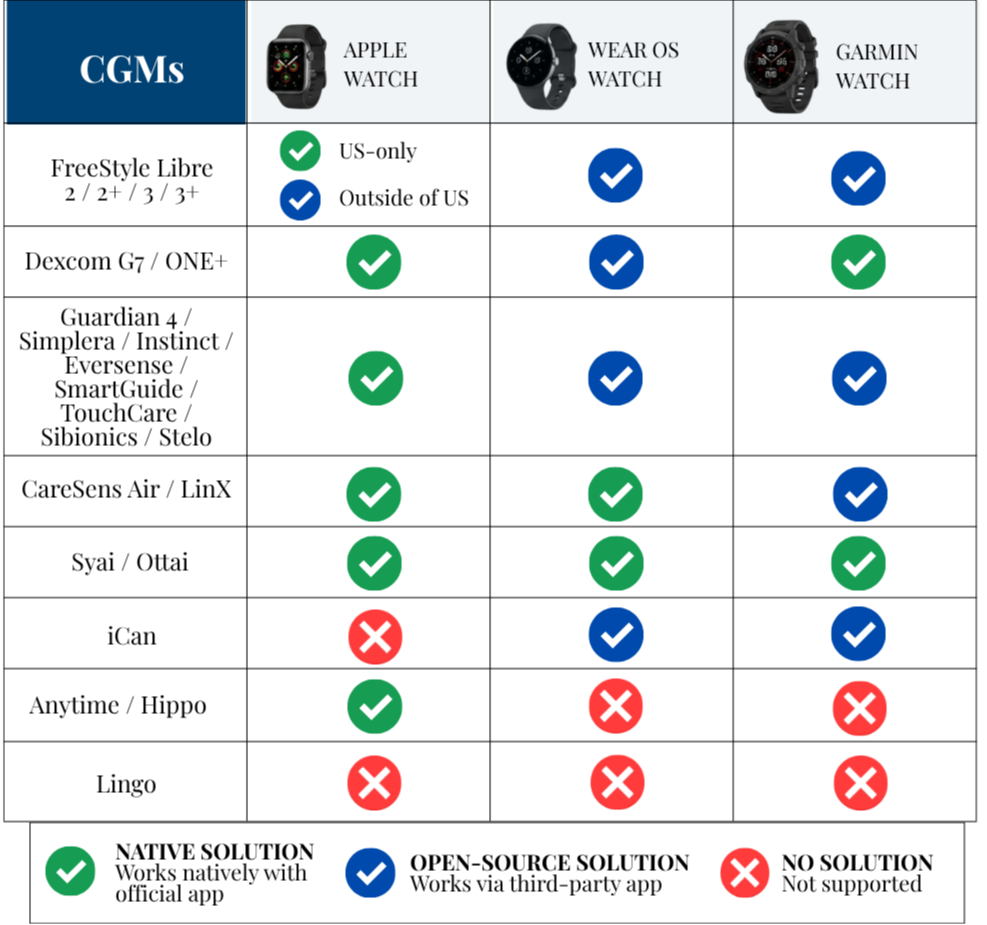
Apple Watch
CGM
Apple Watch
FreeStyle Libre 2 / 2+
also: Shuggah (EU)† · xDrip4iOS (EU)† · Zukka† · Gluroo†* · GlucoWatch†* · GotCGM†* · GlucoseWatch†* · FL Watch†* · Sweet Dreams†*
FreeStyle Libre 3 / 3+
Dexcom G7 / ONE+
also: Direct-to-watch (G7 only) · xDrip4iOS† · Shuggah† · Zukka† · GotCGM†* · Gluroo†* · Sweet Dreams†*
Guardian 4 / Simplera / Instinct
also: Simplera app · Sweet Dreams†* · Gluroo†*
Eversense 365
also: Sweet Dreams†*
Accu-Chek SmartGuide
also: mySugr
CareSens Air
TouchCare Nano
LinX (Microtech)
Sibionics GS1 / GS3
iCan i3 / i6 / GlucoMen iCan
------------
Syai Tag / Ultra
Anytime CT3 / AT4
Ottai M8
Hippo H1
Stelo
also: xDrip4iOS† · Shuggah† · Zukka†
Lingo
Wear OS
CGM
Wear OS
FreeStyle Libre 2 / 2+
also: WatchGlucose† · xDrip+ → GDH† · xDrip+ → G-Watch† · Diabox → G-Watch† · Blose†* · GDH via LLU†* · Gluroo†* · GotCGM†*
FreeStyle Libre 3 / 3+
also: WatchGlucose† · Diabox → G-Watch† · Blose†* · GDH via LLU†* · G-Watch via LLU†* · Gluroo†* · GotCGM†*
Dexcom G7 / ONE+
Guardian 4 / Simplera / Instinct
also: xDrip+ → G-Watch† · Gluroo†*
Eversense 365
Accu-Chek SmartGuide
also: xDrip+ → GDH†
CareSens Air
TouchCare Nano
LinX (Microtech)
also: xDrip+ → GDH† · xDrip+ → G-Watch†
Sibionics GS1 / GS3
also: xDrip+ → GDH† · xDrip+ → G-Watch†
iCan i3 / i6 / GlucoMen iCan
Syai Tag / Ultra
Anytime CT3 / AT4
------------
Ottai M8
Hippo H1
Stelo
Lingo
------------
Garmin
CGM
Apple Watch
FreeStyle Libre 2 / 2+
FreeStyle Libre 3 / 3+
Dexcom G7 / ONE+
Guardian 4 / Simplera / Instinct
Eversense 365
Accu-Chek SmartGuide
CareSens Air
TouchCare Nano
LinX (Microtech)
Sibionics GS1 / GS3
iCan i3 / i6 / GlucoMen iCan
Syai Tag / Ultra
Anytime CT3 / AT4
------------
Ottai M8
Hippo H1
Stelo
Lingo
------------
Per-CGM index
If you prefer to think from your sensor outwards: each CGM is listed below with its primary recommendation per smartwatch platform. Click any link to jump to the recipe.
FreeStyle Libre 2 / 2+
- Apple Watch: Libre by Abbott (US)
- Wear OS: Juggluco†
- Garmin: Juggluco + Kerfstok†
FreeStyle Libre 3 / 3+
- Apple Watch: Libre by Abbott (US)
- Wear OS: Juggluco†
- Garmin: Juggluco + Kerfstok†
Dexcom G7 / ONE+
- Apple Watch: Dexcom app (also: Direct-to-watch, G7 only)
- Wear OS: Blose†*
- Garmin: Dexcom Connect IQ*
Guardian 4 / Simplera / Instinct
- Apple Watch: MiniMed Mobile / Simplera app
- Wear OS: xDrip+ → GDH†
- Garmin: xDrip+ Connect IQ†
Eversense 365
- Apple Watch: Eversense app
- Wear OS: GDH + ESEL†
- Garmin: xDrip+ Connect IQ†
Accu-Chek SmartGuide
- Apple Watch: SmartGuide app / mySugr
- Wear OS: Juggluco†
- Garmin: Juggluco + Kerfstok†
CareSens Air
- Apple Watch: CareSens Air app
- Wear OS: CareSens Air app
- Garmin: xDrip+ Connect IQ†
TouchCare Nano
- Apple Watch: EasyPatch / EasyTouch
- Wear OS: GDH via EasyFollow†*
- Garmin: bruder_jacob via EasyFollow†*
LinX (Microtech)
- Apple Watch: LinX app
- Wear OS: LinX app
- Garmin: xDrip+ Connect IQ†
Sibionics GS1 / GS3
- Apple Watch: Sibionics app (GS3)
- Wear OS: Juggluco†
- Garmin: Juggluco + Kerfstok†
iCan i3 / i6 / GlucoMen iCan
- Apple Watch: —
- Wear OS: xDrip+ → GDH†
- Garmin: xDrip+ Connect IQ†
Syai Tag / Ultra
- Apple Watch: Syai app
- Wear OS: Syai app
- Garmin: Syai (Connect IQ)
Anytime CT3 / AT4
- Apple Watch: Anytime app
- Wear OS: —
- Garmin: —
Ottai M8
- Apple Watch: Ottai app
- Wear OS: Ottai app
- Garmin: Ottai (Connect IQ)
Hippo H1
- Apple Watch: Hippo H1 app
- Wear OS: xDrip+ → GDH†
- Garmin: xDrip+ Connect IQ†
Stelo (Dexcom)
- Apple Watch: Stelo app
- Wear OS: xDrip+ → GDH†
- Garmin: xDrip+ Connect IQ†
Lingo (wellness)
- Apple Watch: No real-time option
- Wear OS: —
- Garmin: —
Important disclaimers
⚠ Third-party / open-source apps
Throughout the recipes you will see a one-line note pointing here. The full warning applies to every third-party app in this guide: These apps are open-source, community-driven, or independently developed. They are not supported, endorsed, or regulated by any CGM manufacturer or regulatory authority, and they are not approved for diabetes therapy decisions. You take full responsibility for using this software and you agree to do so at your own risk.
Other disclaimers
- Medical advice: This document is informational. It does not replace medical advice, nor is it endorsed by any CGM manufacturer or regulatory authority. Always consult your healthcare provider for personalised guidance.
- Author's stance: I do not actively recommend any of the third-party apps listed in this document. They are included for transparency and completeness, so you can make an informed choice. Where an official manufacturer app is available, that is the recommended option.
- Accuracy: Open-source apps may produce readings that vary slightly from official CGM apps. When in doubt, confirm with a fingerstick check.
- Data sharing: Most open-source apps do not send data to LibreView, Dexcom Clarity, or CareLink. This may complicate clinician review. Notable exception: Juggluco can be configured to upload to LibreView.
- Nightscout and Tidepool: Some open-source apps work with Nightscout or Tidepool for cloud storage and sharing.
- OS updates: Disable automatic OS updates. System updates can break third-party apps overnight.
Smartwatch platforms
This guide covers three smartwatch platforms: Apple Watch, Wear OS, and Garmin.
Apple Watch (watchOS)
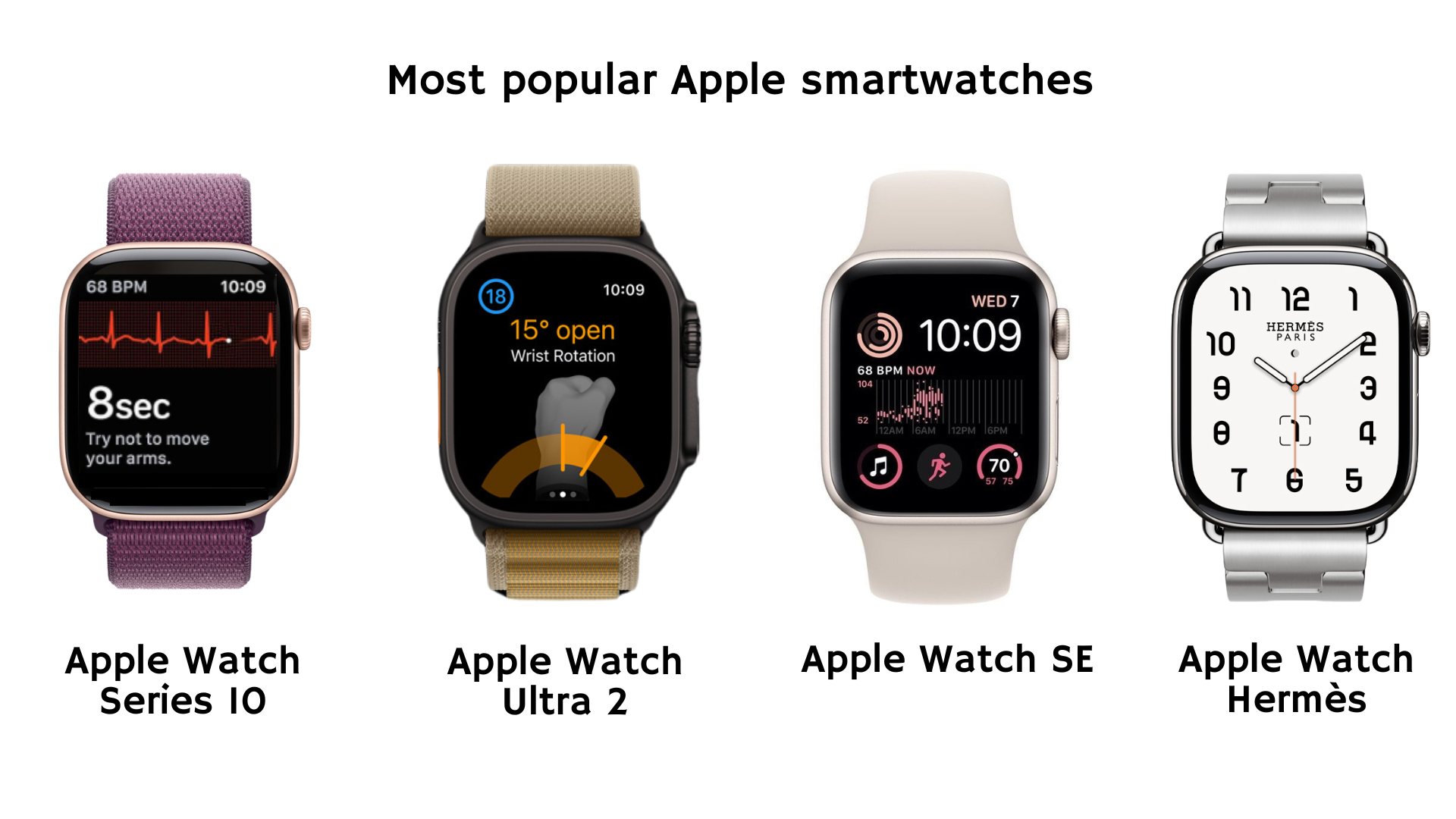
- OS: watchOS 11+
- Key features: ECG, blood oxygen, atrial fibrillation detection, sleep tracking, emergency alerts, VO₂max estimates.
- Battery: ~18–24 hours (standard models); ~36 hours (Ultra).
- Price: from $249 (Apple Watch SE 3) up to $799 (Ultra 3), with higher prices for titanium and Hermès variants.
Wear OS (Samsung, Google Pixel, OnePlus, Fossil, etc.)
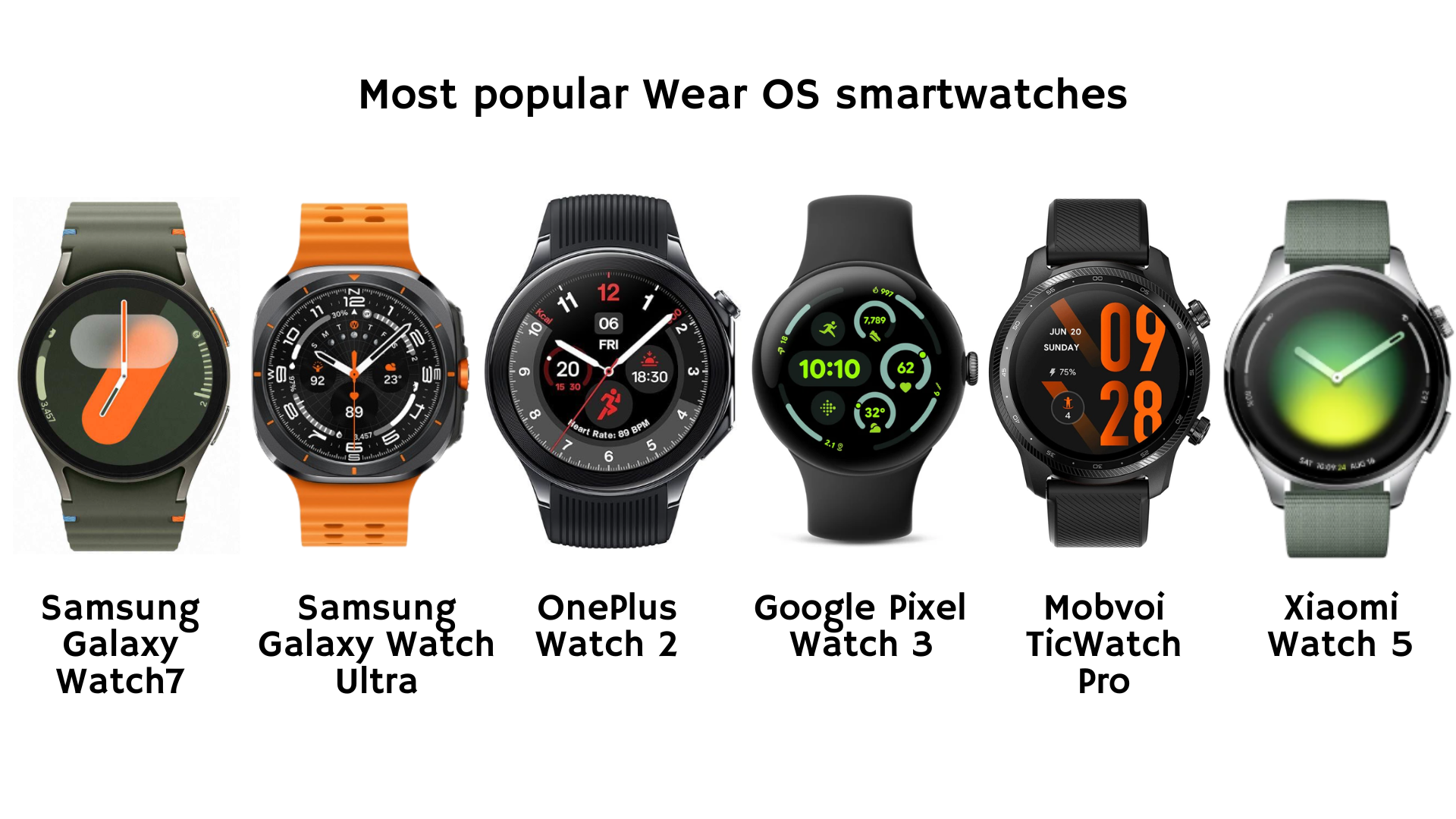
- OS: Wear OS 4–6 on current devices.
- Key features: Google Fit / Fitbit integration, third-party apps, deep Google services integration.
- Battery: ~1–2 days for most full-featured models; newer designs like the Xiaomi Watch 5 up to 5–6 days.
- Price: from around $70 for older models to $400–$450 for current flagships (Galaxy Watch 8 / Ultra, Pixel Watch 4, OnePlus Watch 3).
- Wear OS 5 note: Pixel Watch 3, Galaxy Watch 7 / Ultra broke legacy watch-face APIs. Prefer complication-based solutions over full watch-face replacements.
Garmin (GarminOS / Connect IQ)
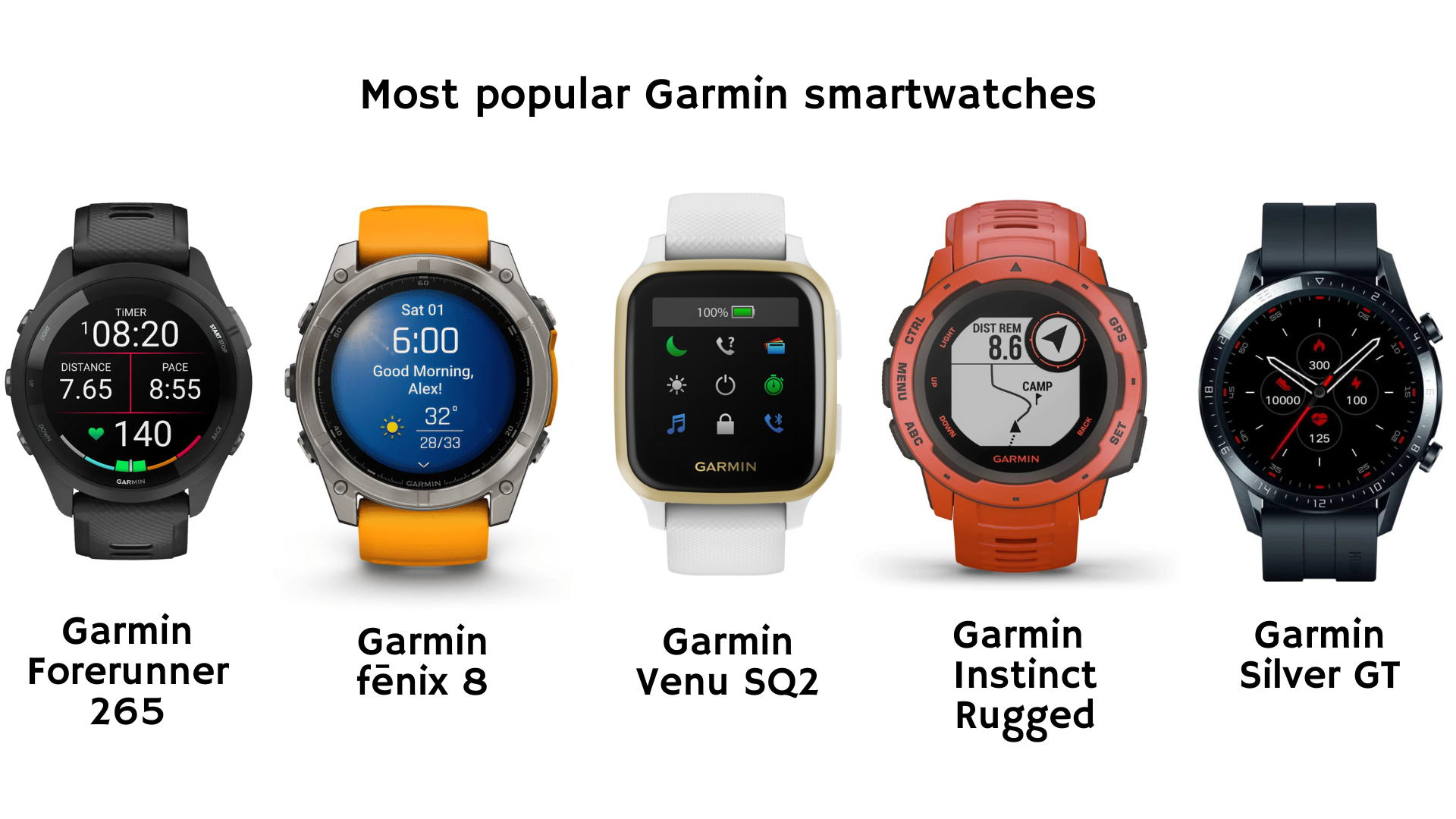
- OS: GarminOS, proprietary. Updates via Garmin Connect.
- Key features: Excellent battery life (sometimes solar-assisted), advanced fitness metrics, strong GPS, rugged designs.
- Battery: 7–34 days.
- Price: from $199 (Forerunner 55 / 165, Venu Sq 2) up to $1199–$1299 (Fenix 8 Pro and premium multisport).
- Connect IQ: Garmin's app store for third-party apps, widgets, data fields, and watch faces.
Key smartwatch terminology
Understanding where your CGM data appears on your smartwatch is important. Different watch brands use different terms for similar concepts.
Most smartwatches use a touchscreen with one or more buttons. Some models have a rotating bezel or crown for adjusting settings. Rugged or sport-specific watches may rely on buttons only.
Apple Watch
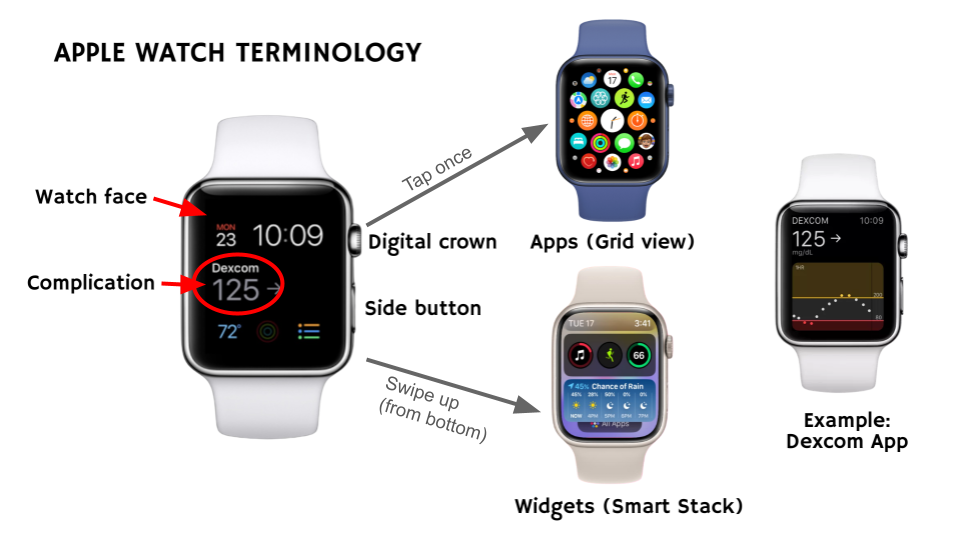
- Watch face: the main screen showing time and info. Customise by long-pressing the face or via the Watch app on iPhone. Popular modular faces (Infograph, Modular, Modular Duo) hold multiple complications.
- Complications: small info slots on the watch face that can show real-time glucose. Refresh every 15–30 min by default. Tap to open the full app for live data.
- Calendar trick: Shuggah, GotCGM, and Gluroo use calendar events for 1-minute updates via a calendar complication. Note: iOS 18 limited calendar refresh rates.
- Contact trick: GotCGM and Gluroo can create a contact image showing glucose values and trend arrows, enabling larger near real-time displays in some complications.
- Widgets: in watchOS 10+, swipe up or use the Digital Crown (Smart Stack).
- Apps: Home Screen shows all apps. Press the Digital Crown to reach it; tap to open.
Wear OS (Samsung Galaxy Watch)
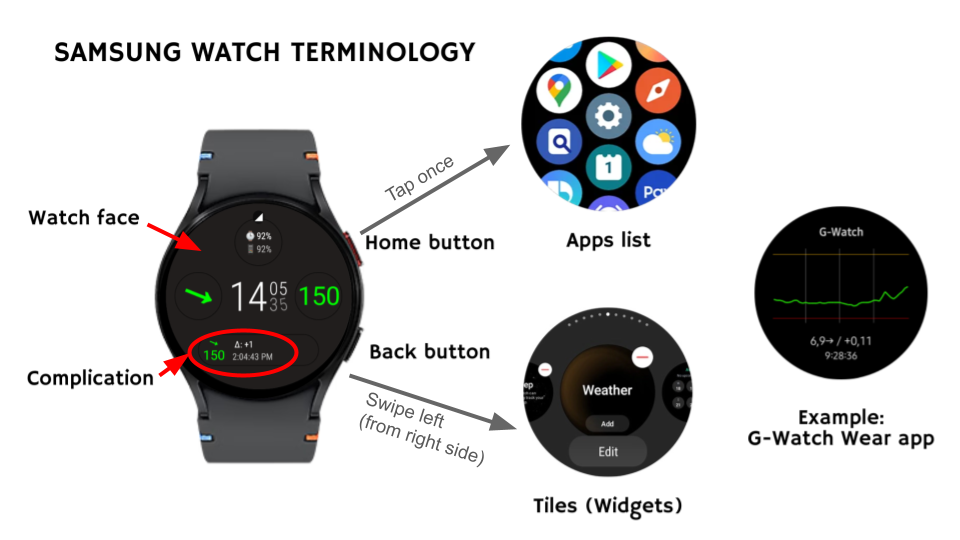
- Watch face: the main screen. Customise by long-pressing or via the Galaxy Wearable app on Android.
- Complications: small live-data windows on the watch face. Tap to open the full app.
- Tiles (Widgets): shortcut screens. From the watch face, swipe left to access.
- Apps: swipe up from the watch face to open the Apps list. Install from Google Play Store.
Garmin
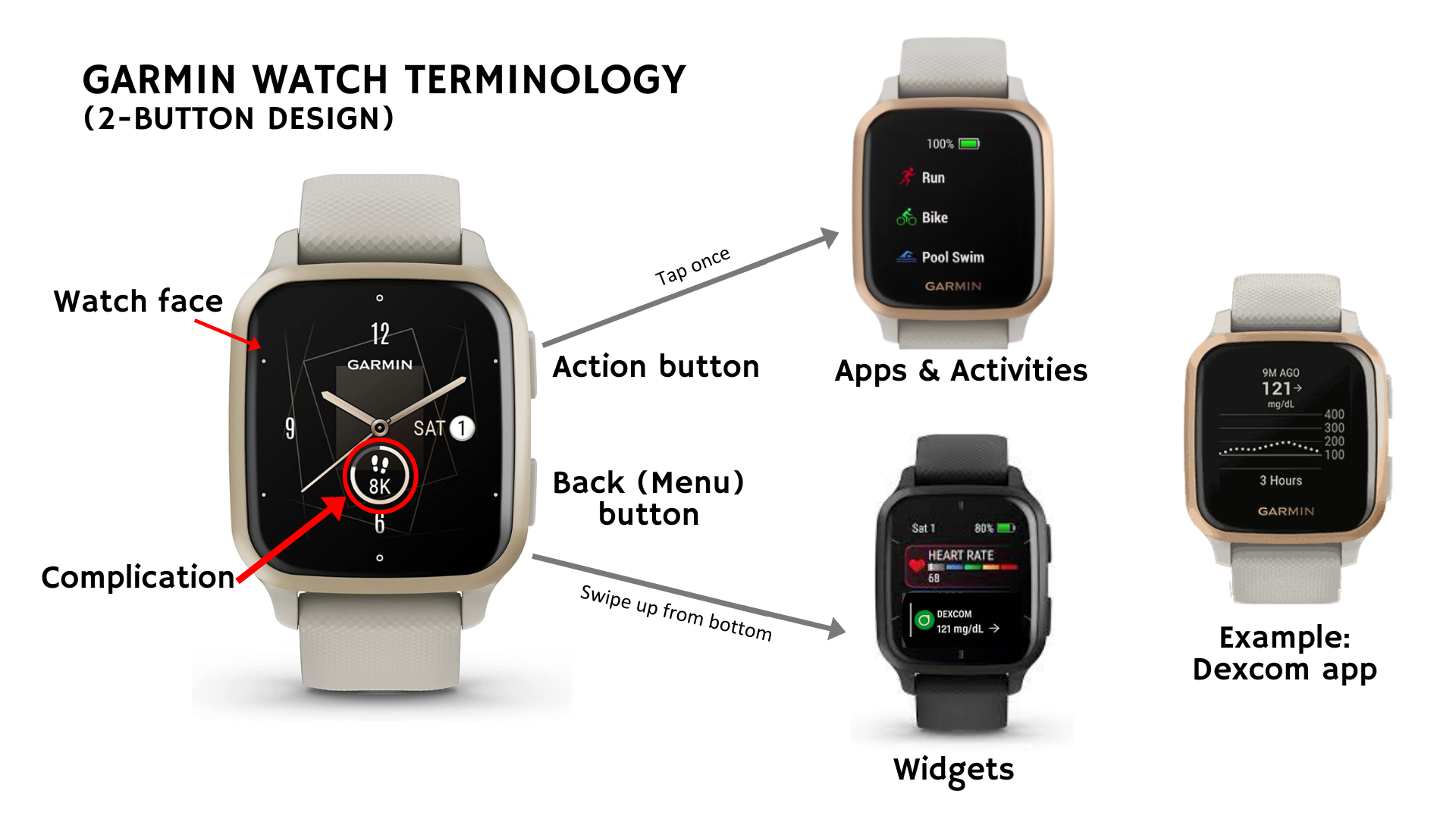
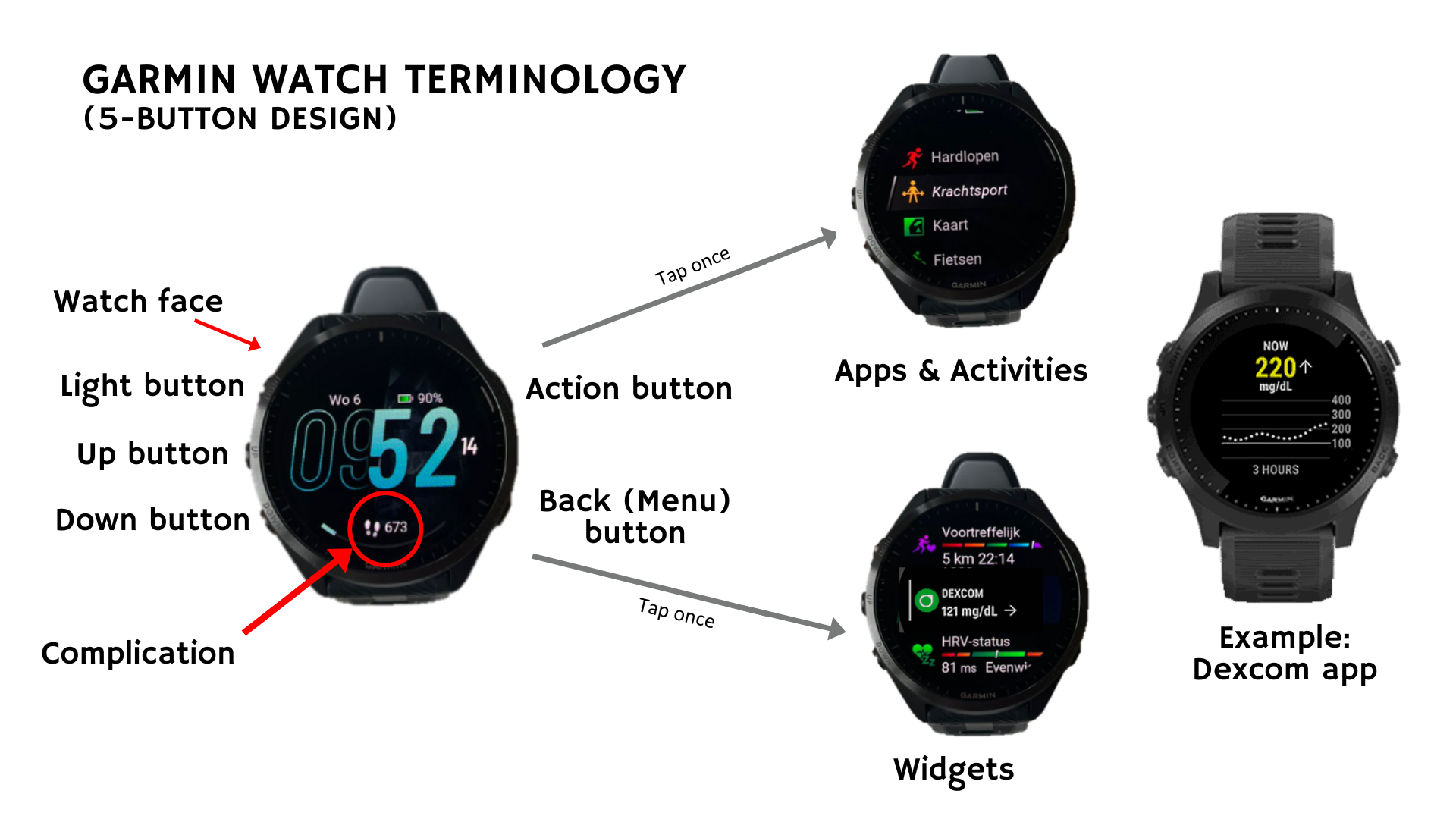
- Watch face: main display with time and data fields. Customise by long-pressing the Menu button or via the Garmin Connect app.
- Complications: small info slots from apps, widgets, or data fields.
- Widgets: quick-access screens. From the watch face, swipe up to see the widgets.
- Data fields: specific information displayed during activities or on watch faces.
- Apps: full programs from the Connect IQ Store. Press the Action button to see all apps and activities.
Internet
No (Bluetooth)
Cost
Free
Platform
iOS
Cloud upload
Manufacturer cloud
Difficulty
1
The simplest and most reliable option: install the official CGM app on your iPhone, add a complication to your Apple Watch face. Works offline via Bluetooth from your iPhone.
Applies to
- Dexcom G7 / ONE+, MiniMed Mobile (Guardian, Simplera & Instinct), Simplera, Eversense 365, Accu-Chek SmartGuide / mySugr, CareSens Air, EasyPatch / EasyTouch (TouchCare Nano), LinX, Sibionics (GS3 only), Syai, Anytime, Ottai M8, Hippo H1, Stelo by Dexcom.
- FreeStyle Libre 2 / 2+ / 3 / 3+: via the Libre by Abbott app — US only. Requires Libre by Abbott app v1.2.1 or later, a US-based sensor and US LibreView account. EU / other regions: see alternative options.
Requirements
- iPhone with iOS 16+ (iOS 17+ for some newer CGM apps).
- Apple Watch Series 4 or later, watchOS 10+.
- Official CGM app from the manufacturer (App Store).
Steps
- Install the official CGM app from the App Store on your iPhone.
- Start or connect your sensor following the manufacturer's instructions.
- On iPhone: Watch app → My Watch → install the watch app (usually automatic).
- Long-press your watch face → Edit → Complications → add the CGM complication. Modular, Infograph, and Modular Duo support multiple complications.
- Wait 5–15 minutes for the first reading.
Caveats
- Complications refresh every 15–30 min. Tap the complication to open the app for live data.
- Data stays in the manufacturer's cloud — clinicians can still review reports.
- Different CGM manufacturers ship their watch features at different times — check the App Store for the latest version of your specific app.
Internet
Direct mode: no · Follower mode: yes
Cost
~€1.20/month
Platform
iOS
Cloud upload
None (does not upload to LibreView)
Difficulty
2
App Store app with Apple Watch complication. Direct mode for FreeStyle Libre 2 EU; LibreLinkUp follower mode for all FreeStyle Libre sensors. Costs ~€1.2/month.
Applies to
- FreeStyle Libre 2 EU (direct BLE).
- FreeStyle Libre 2 / 2+ / 3 / 3+ via LibreLinkUp follower (internet required).
- Dexcom G7 / ONE+ via Dexcom Share.
- Stelo via Dexcom Share.
Requirements
- iPhone with iOS 16+.
- Apple Watch (any series supporting complications).
- Subscription: ~€1.20/month.
- For follower modes: a LibreLinkUp follower account or Dexcom Share enabled.
Steps
- Install Shuggah from the App Store.
- Choose your data source:
- Direct mode (FreeStyle Libre 2 EU only): start sensor with LibreLink app, afterwards disable Bluetooth in the official LibreLink app, set 'FreeStyle Libre 2 Direct' in Shuggah and scan the sensor again with the Shuggah app.
- Follower mode: create a LibreLinkUp follower account (different email than your main LibreView), or enable Dexcom Share. Enter credentials in Shuggah.
- Add Shuggah as a calendar complication on a Modular or Infograph watch face for 1-minute updates.
Caveats
- Direct mode is FreeStyle Libre 2 EU only. For FreeStyle Libre 3 you need follower mode (cloud).
- iOS 18 limits the calendar refresh rate — some readings may be missed.
- Direct mode does not upload to LibreView.
- Based on older xDrip4iOS code; fewer features than xDrip4iOS.
Apps used: Shuggah
Internet
Direct mode: no · LLU/Share: yes
Cost
Free (Apple Developer account ~$99/year if self-build)
Platform
iOS
Cloud upload
Optional (Follow-Dexcom-app preserves Clarity)
Difficulty
3
Full-featured open-source iOS CGM app with Apple Watch app showing BG graph, delta, trend arrow, IOB / COB (with Loop / Trio), plus Live Activities and Dynamic Island.
Applies to
- FreeStyle Libre 2 EU (direct BLE).
- FreeStyle Libre 2 / 2+ / 3 / 3+ via LibreLinkUp follower.
- Dexcom G7 / ONE+ (direct BLE or Follow-Dexcom-app mode — Clarity stays active).
- Stelo via Dexcom Share.
- Any Nightscout source.
Requirements
- iPhone with iOS 16.2+.
- Apple Watch Series 4+, watchOS 10+.
- One of three install paths (see Steps).
- Documentation: xdrip4ios.readthedocs.io
Steps
- Choose one of three install methods:
- Build it yourself with a paid Apple Developer account (no Mac required).
- Join a private TestFlight release. Check the xDrip4iOS Facebook group for open invitations. Do not post asking — only join open invitations.
- Use Zukka from the App Store (App Store wrapper of xDrip4iOS — fewer features but no sideloading). See Zukka recipes.
- Configure your CGM data source: direct sensor (FreeStyle Libre 2 EU), LibreLinkUp follower (FreeStyle Libre 3), Follow-Dexcom-app, direct Dexcom BLE, or Dexcom Share.
- Apple Watch app installs automatically. Add complications to your watch face.
Caveats
- Not on the regular App Store — TestFlight or self-build only (or use Zukka wrapper).
- Direct FreeStyle Libre 2 only works for EU sensors. For FreeStyle Libre 3: use LibreLinkUp follower mode.
- Follow-Dexcom-app mode preserves Dexcom Clarity for clinician access.
Internet
Direct: no · Follower: yes
Cost
Free
Platform
iOS
Cloud upload
None (does not upload to LibreView)
Difficulty
2
App Store wrapper of xDrip4iOS. Less feature-rich than xDrip4iOS itself but no sideloading required.
Applies to
- FreeStyle Libre 2 EU (direct BLE).
- FreeStyle Libre 2 / 3 via LibreLinkUp follower.
Requirements
- iPhone + Apple Watch.
- For follower mode: a LibreLinkUp follower account.
Steps
- Install Zukka from the App Store.
- Start the sensor with the official LibreLink app. If using direct mode, disable Bluetooth for LibreLink afterwards.
- Open Zukka, choose direct mode (FreeStyle Libre 2 EU) or follower mode (FreeStyle Libre 3 / FreeStyle Libre 2 cloud).
- Scan sensor (direct) or enter LibreLinkUp credentials (follower).
- Add Zukka complication to your watch face.
Caveats
- Data not uploaded to LibreView if you are using direct mode.
Apps used: Zukka
Internet
Direct: no · Share: yes
Cost
Free
Platform
iOS
Cloud upload
Share mode preserves Clarity; direct mode none
Difficulty
2
Same Zukka app configured for Dexcom. Direct connection or via Dexcom Share cloud.
Applies to
- Dexcom G7 / ONE+ (direct BLE or via Dexcom Share).
- Stelo by Dexcom (via Dexcom Share).
Requirements
- iPhone + Apple Watch.
- For Share mode: Dexcom Share enabled (internet required, but keeps Clarity working).
Steps
- Install Zukka from the App Store.
- Choose Dexcom direct mode (offline) or Dexcom Share mode (internet, keeps Clarity).
- Pair sensor or enter Share credentials.
- Add Zukka complication to watch face.
Caveats
- Direct mode: data does not reach Dexcom Clarity — prefer Share mode if your clinician needs reports.
- Less feature-rich than xDrip4iOS.
Apps used: Zukka
Internet
Yes
Cost
Free
Platform
iOS
Cloud upload
EasyFollow cloud
Difficulty
2
Alternative Apple Watch path for TouchCare Nano (Medtrum) using an EasyFollow account for cloud-based data retrieval.
Applies to
- TouchCare Nano (Medtrum).
Requirements
- EasyFollow account (different email than your main EasyPatch / EasyTouch account).
- iPhone + Apple Watch.
- Continuous internet.
Steps
- Install EasyFollow and create a follower account with a different email than your main CGM account.
- Install Zukka from the App Store.
- Configure Zukka with EasyFollow credentials.
- Add Zukka complication to your watch face.
Caveats
- Internet required. For offline native option: see Native Apple Watch (EasyPatch / EasyTouch).
Apps used: Zukka
Internet
Yes (always on iOS)
Cost
Free
Platform
iOS + Android (cross-platform)
Cloud upload
Manufacturer cloud preserved (Share / LLU)
Difficulty
1
Cross-platform CGM display with the easy setup (no sideloading). Works on Apple Watch, Wear OS 4 / 5, Galaxy Watch 6 / 7 / Ultra, and Garmin (via Nightscout URL bridge or the calendar trick).
Applies to
- FreeStyle Libre 2 / 2+ / 3 / 3+ via LibreLinkUp follower.
- Dexcom G7 / ONE+ via Dexcom Share.
- Guardian CGM and other CGMs that present user notifications which show the blood sugar level.
- Eversense or FreeStyle Libre being controlled by the twiist pump.
- Any CGM feeding Nightscout, xDrip+ or Juggluco.
Requirements
- iPhone (iOS) or Android phone.
- Continuous internet connection.
- App: Gluroo (App Store / Play Store).
Steps
- Install Gluroo from the App Store or Play Store.
- Connect your CGM source: Dexcom Share credentials, or LibreLinkUp follower account (separate email from LibreView).
- iOS + Apple Watch: Settings → Watch → Create Contact → add the contact-photo complication to your watch face.
- Android + Wear OS: install 'Gluroo Watch App' and 'Gluroo CGM Watchface App' from Play Store on your watch.
- Garmin: use the Gluroo Nightscout URL bridge (advanced setup).
Caveats
- Always requires internet on iOS; supports integration via Android system-local broadcasts (e.g., from xDrip+ or Juggluco).
- For FreeStyle Libre real-time updates on Apple Watch, Gluroo claims up to 60 updates / hour via the contact trick.
- Includes family / caregiver sharing via GluCrew.
Apps used: Gluroo
Internet
No (Bluetooth direct)
Cost
Free
Platform
iOS
Cloud upload
Manufacturer cloud (Clarity)
Difficulty
1
The only officially supported direct-to-watch CGM solution. Works without the iPhone nearby (up to ~6 metres). Ideal for workouts.
Applies to
- Dexcom G7
Requirements
- iPhone with iOS 17+.
- Apple Watch Series 6 or newer, watchOS 10+. [verify minimum hardware]
- Dexcom G7 app v2.1 or later.
Steps
- Update the Dexcom G7 app to v2.1+ via App Store.
- Open Dexcom G7 app → Connections → Direct to Watch → enable.
- On Apple Watch: the Dexcom G7 watch app pairs automatically.
- Add a Dexcom complication to your watch face.
Caveats
- Dexcom G7 only — not Dexcom ONE+, not Stelo.
- Initial sensor activation still requires an iPhone nearby.
- Share / Follow features still require iPhone or Wi-Fi.
- Launched US / UK / IE in 2024; expanding to other markets gradually.
GlucoWatch / GotCGM / GlucoseWatch / FL Watch / Sweet Dreams (iOS, cloud)
Last reviewed: Q2 2026
⚠ Third-party app — see disclaimer.
Internet
Yes
Cost
Varies (free to ~$3.99/month)
Platform
iOS (GotCGM also Wear OS)
Cloud upload
Manufacturer cloud preserved (LLU / Share)
Difficulty
2
Five alternative iOS apps that fetch CGM data from manufacturer cloud services and display on Apple Watch. All require continuous internet.
Applies to
- FreeStyle Libre 2 / 2+ / 3 / 3+ via LibreLinkUp follower (all five apps).
- Dexcom G7 / ONE+ via Dexcom Share (GotCGM and Sweet Dreams only).
- Medtronic sensors via CareLink Connect follower account (Sweet Dreams).
- Eversense presumably via Eversense DMS follower account (new, not tested) (Sweet Dreams).
- Medtrum presumably via EasyFollow account (new, not tested) (Sweet Dreams).
- twiist via Tidepool link (Sweet Dreams).
Requirements
- iPhone + Apple Watch.
- LibreLinkUp follower account (different email than your main LibreView), or other follower account enabled.
- Continuous internet.
Steps
- Choose your app — each is described below with cost and link.
- Create a LibreLinkUp follower account with a different email than your main LibreView (or enable Dexcom Share for GotCGM / Sweet Dreams).
- Install the chosen app from the App Store and enter credentials.
- Add the app's complication to your Apple Watch face.
App options
- GlucoWatch — free. FreeStyle Libre via LLU only.
- Sweet Dreams — free.
- GotCGM — paid (discounted to $7.99/year at launch). FreeStyle Libre via LLU and Dexcom G7 / ONE+ via Share. Made by the team behind Gluroo.
- GlucoseWatch — paid (~$3.99 monthly). FreeStyle Libre via LLU only.
- FL Watch — paid. FreeStyle Libre 2 / 3 via LLU.
Caveats
- All five are cloud-dependent — constant internet required.
Apps used: GlucoWatch · GotCGM · GlucoseWatch · FL Watch · Sweet Dreams
Internet
N/A
Cost
N/A
Platform
iOS / Android (phone only)
Cloud upload
Lingo cloud
Difficulty
--
Abbott does not offer direct smartwatch integration for its Lingo biosensor (a wellness / metabolic device, not a medical CGM). There is no working way to display Lingo readings on your wrist in real time.
Applies to
- Lingo wellness sensor (not for medical CGM use).
Why no real-time option exists
- No native watch app: Abbott has not published a Lingo Apple Watch, Wear OS, or Garmin app.
- Apple Health route does not work in practice: Lingo can write blood-glucose values to Apple Health, but Apple Health limits the visibility of these values with roughly a 3-hour delay before complications and watch-face data sources can read them. By the time a value reaches your watch, it is no longer current. This makes the Apple Health → complication path unsuitable for any real-time use.
- No third-party bridges: the open-source ecosystem (xDrip+, Juggluco, etc.) does not currently support Lingo as a data source.
What does work (with caveats)
- Open the Lingo app on your iPhone or Android phone for on-demand readings.
- Lingo can integrate into the Withings ecosystem alongside ScanWatch Nova, but the same Apple Health refresh limitation applies — not real-time.
Caveats
- Lingo is a wellness product, not a medical CGM. Not for diabetes management decisions.
- If real-time wrist display is essential for your use case, a medical CGM (FreeStyle Libre, Dexcom, etc.) is the appropriate choice.
Apps used: Lingo iPhone / Android app (no smartwatch component).
Internet
No (Bluetooth)
Cost
Free
Platform
Android
Cloud upload
Manufacturer cloud
Difficulty
1
Several CGMs offer native Wear OS apps that install directly on your watch.
Applies to
- CareSens Air, LinX (Microtech), Syai Tag / Ultra (Samsung Galaxy Watch, Pixel Watch 2+), Ottai M8 (Galaxy Watch / Pixel Watch).
Requirements
- Android phone with the manufacturer's CGM app installed.
- Wear OS smartwatch (Galaxy Watch / Pixel Watch / OnePlus Watch / etc.).
- On-watch Play Store access.
Steps
- Install the manufacturer's CGM app on your Android phone (Play Store).
- Pair your Wear OS watch with your phone via the Galaxy Wearable / Pixel Watch app.
- Install the companion app on the watch via the on-watch Play Store.
- Follow the manufacturer's pairing instructions. Syai specifically: app → Profile → Connect with Watch → Wear OS → scan QR code.
Caveats
- Wear OS 5 (Galaxy Watch 7 / Ultra, Pixel Watch 3): some legacy watch faces blocked. Check manufacturer compatibility list.
- LinX Wear OS app is not available in all regions yet.
- Data stays in the manufacturer's cloud — clinician reports remain available.
Internet
No (Bluetooth)
Cost
Free
Platform
Android
Cloud upload
Optional (Juggluco can upload to LibreView)
Difficulty
2
Juggluco on Android phone + Juggluco on Wear OS watch. Direct Bluetooth to sensor — no internet required.
Applies to
- FreeStyle Libre 2 / 2+ / 3 / 3+.
- Dexcom G7 / ONE+.
- Accu-Chek SmartGuide.
- Sibionics GS1 / GS3.
Requirements
- Android phone.
- Wear OS smartwatch (Galaxy Watch, Pixel Watch, OnePlus Watch).
- Juggluco — APK from juggluco.nl or Play Store.
Steps
- Download Juggluco APK from juggluco.nl or Play Store and install on Android.
- Disable Bluetooth in the official CGM app (prevents conflict).
- Open Juggluco → scan sensor: NFC (FreeStyle Libre), Bluetooth pairing (Dexcom G7), QR + PIN on blue cap (SmartGuide), data matrix on package (Sibionics).
- Install Juggluco on your Wear OS watch via the on-watch Play Store.
- In Juggluco on the phone: left menu → Watch → Wear OS → activate.
- Add the Juggluco complication to your watch face. Alternative: bridge to GlucoDataHandler, G-Watch Wear, GotCGM or Gluroo.
Caveats
- Wear OS 5: use complications only — full watch-face mode was removed after Wear OS 4.
- Data does not reach LibreView / Clarity / CareLink by default. Juggluco can be configured to upload to LibreView.
- 1-minute updates for FreeStyle Libre, 5-minute for Dexcom.
Apps used: Juggluco · GlucoDataHandler · G-Watch Wear
xDrip+ → GlucoDataHandler, G-Watch Wear, Gluroo or GotCGM
Last reviewed: Q2 2026
⚠ Third-party app — see disclaimer.
Internet
No (companion mode)
Cost
Free
Platform
Android
Cloud upload
Companion mode preserves manufacturer cloud
Difficulty
3
xDrip+ on Android phone in companion mode (reads from official CGM app, preserving data flow to the manufacturer cloud). Then GlucoDataHandler or G-Watch Wear displays on your watch. No internet needed.
Applies to
- Dexcom G7 / ONE+ / Stelo (companion mode or direct BLE).
- Guardian 4 / Simplera / Instinct, Sibionics GS1 / GS3, iCan i3 / i6, LinX, Hippo H1, Accu-Chek SmartGuide (companion mode).
- Eversense 365 (xDrip+ data source: Eversense).
- CareSens Air (enable xDrip switch in CareSens settings).
- FreeStyle Libre 2 (also works, but Juggluco is usually preferred).
Requirements
- Android phone with official CGM app installed.
- Wear OS watch.
- xDrip+ APK + GlucoDataHandler or G-Watch Wear.
Steps
- Use the official CGM app to start / manage the sensor (keeps data flowing to Clarity / CareLink / LibreView).
- Install xDrip+ APK and set data source to Companion app (or Eversense / Dex / other as applicable).
- CareSens Air specifically: in the CareSens app, Settings → Manage Data and Connections → enable the xDrip switch.
- Install GlucoDataHandler, G-Watch Wear, Gluroo or GotCGM on phone and watch.
- Set the bridging-app source to xDrip+.
- Add the complication to your watch face, or use a dedicated face by Diabetic Masked Man (for GDH) or the G-Watch Wear.
Caveats
- Companion mode preserves official data flow — recommended for clinician-supervised patients.
- Wear OS 5: use complications, not legacy xDrip watch face.
- Direct-sensor modes (e.g., xDrip+ 'Dex' for Stelo) don't upload to the manufacturer cloud, but can be shared using a care-coordination app such as Gluroo.
Apps used: xDrip+ · GlucoDataHandler · G-Watch Wear · GotCGM · Gluroo
Diabox → G-Watch Wear (FreeStyle Libre alternative)
Last reviewed: Q2 2026
⚠ Third-party app — see disclaimer.
Internet
No (direct BLE)
Cost
Free
Platform
Android
Cloud upload
None (does not upload to LibreView)
Difficulty
3
Diabox is an Android app that reads FreeStyle Libre 2 / 3 directly via BLE.
Applies to
- FreeStyle Libre 2 EU / 2+ (direct BLE).
- FreeStyle Libre 3 / 3+ (direct BLE, all regions).
- FreeStyle Libre 1 / 2 via Bubble or Bubble Nano (NFC bridge).
Requirements
- Android phone + Wear OS watch.
- Diabox APK + G-Watch Wear or Wearable Widgets.
Steps
- Install Diabox APK from their Telegram channel.
- Start the sensor with the official app, afterwards disable Bluetooth in the official LibreLink app.
- Open Diabox and scan the FreeStyle Libre sensor with the Diabox app (direct BLE).
- Install G-Watch Wear on phone + watch, set data source to Diabox.
- Alternative: install Wearable Widgets + add Diabox as a widget → select in Galaxy Wearable as watch face / complication.
Caveats
- Closed-source, distributed only via Telegram — updates can be irregular.
- Only path for FreeStyle Libre 3 direct BLE without a region-locked LibreLinkUp account.
- Data not uploaded to LibreView.
Apps used: Diabox · G-Watch Wear
WatchGlucose → Wear OS (FreeStyle Libre direct)
Last reviewed: Q2 2026
⚠ Third-party app — see disclaimer.
Internet
No (direct BLE)
Cost
Free
Platform
Android
Cloud upload
None
Difficulty
2
Wear OS app with direct BLE connection to FreeStyle Libre sensors. No phone bridging app, no internet required for the data flow.
Applies to
- FreeStyle Libre 2 / 2+ / 3 / 3+ (direct BLE).
Requirements
- Android phone (for initial pairing).
- Wear OS smartwatch.
- WatchGlucose (Play Store, free).
Steps
- Install WatchGlucose on phone and Wear OS watch via Play Store.
- Start the sensor with the official LibreLink app. Afterwards, disable Bluetooth in the official LibreLink app (prevents conflict).
- Open WatchGlucose, scan / pair your FreeStyle Libre sensor directly.
- Add WatchGlucose complication to your Wear OS watch face.
Caveats
- Direct BLE — no internet required for data, only for app installation.
- Data not uploaded to LibreView.
- Wear OS only — no Apple Watch or Garmin path.
Apps used: WatchGlucose
Internet
Yes
Cost
Varies (free to paid)
Platform
Android
Cloud upload
Manufacturer cloud preserved (LLU)
Difficulty
2
Fetch FreeStyle Libre data from LibreLinkUp cloud and display on Wear OS. Easier than direct BLE setups but requires continuous internet.
Applies to
- FreeStyle Libre 2 / 2+ / 3 / 3+ via LibreLinkUp follower account.
Requirements
- Android phone + Wear OS watch.
- LibreLinkUp follower account (different email than your main LibreView).
- Continuous internet.
Steps
- Create a LibreLinkUp follower account using a different email than your main LibreView / LibreLink account.
- Choose your app — each has different strengths:
- GlucoDataHandler — recommended; complication provider for any face.
- Gluroo — easy setup. See Gluroo recipe.
- Blose — runs entirely on the watch, no phone app.
- G-Watch Wear — FreeStyle Libre 3 only via LLU.
- GotCGM — paid, also Wear OS.
- Install the chosen app on Android phone + Wear OS watch.
- Enter LibreLinkUp follower credentials in the app.
- Add the app's complication to your watch face.
Caveats
- All routes require continuous internet.
- Cloud delay: 2–5 minutes behind sensor reading.
- Data stays in LibreView — clinician access preserved.
- For offline setup, use Juggluco → Wear OS or xDrip+ → GDH / G-Watch.
Apps used: GlucoDataHandler · Gluroo · Blose · G-Watch Wear · GotCGM
Internet
Yes
Cost
Free (most apps)
Platform
Android
Cloud upload
Manufacturer cloud preserved (Clarity)
Difficulty
2
Fetch Dexcom G7 / ONE+ data from Dexcom Share cloud and display on Wear OS. Easy setup, but requires internet.
Applies to
- Dexcom G7 / ONE+ via Dexcom Share.
Requirements
- Android phone (for some apps) + Wear OS watch.
- Dexcom Share enabled (invite yourself as follower).
- Continuous internet.
Steps
- Enable Dexcom Share by inviting yourself as a follower: Dexcom app → Share → invite → accept via Dexcom Follow app.
- Choose your app:
- Blose — simplest, on-watch only, no phone app needed.
- GlucoDataHandler — richest features.
- G-Watch Wear — Samsung Galaxy Watch focused.
- Gluroo — cross-platform.
- Install the chosen app on your Wear OS watch (Blose runs watch-only; others need the phone app too).
- Enter Dexcom Share credentials.
- Add the complication to your watch face.
Caveats
- All cloud-dependent — fails in low-signal areas.
- Data preserved in Dexcom Clarity.
- For offline use: Juggluco → Wear OS or xDrip+ → GDH / G-Watch.
Apps used: Blose · GlucoDataHandler · G-Watch Wear · Gluroo
Eversense → GlucoDataHandler direct (ESEL)
Last reviewed: Q2 2026
⚠ Third-party app — see disclaimer.
Internet
No (Bluetooth)
Cost
Free (most apps)
Platform
Android
Cloud upload
Manufacturer cloud (Eversense app continues to manage)
Difficulty
2
Dedicated path for Eversense 365: GlucoDataHandler reads directly from Eversense, no xDrip+ in the middle. Uses the ESEL (Eversense source) integration.
Applies to
- Eversense 365.
Requirements
- Android phone + Wear OS watch.
- Eversense app installed and sensor active.
- GlucoDataHandler + the ESEL bridge app.
Steps
- Install GlucoDataHandler on phone and Wear OS watch.
- In GDH: set data source to Eversense.
- Install the ESEL bridge app.
- Add GDH complication to watch face.
Caveats
- Alternative to the xDrip+ → GDH route. The xDrip+ route is more universal but requires an extra step.
Apps used: GlucoDataHandler
Internet
Yes
Cost
Free
Platform
Android
Cloud upload
Manufacturer cloud preserved (Clarity)
Difficulty
2
Wear OS app dedicated to Dexcom G7 / ONE+. Runs alongside the Dexcom phone app — no separate bridging app on the phone. Standalone option for Wear OS if you don't want to install Blose, GDH, or G-Watch Wear.
Applies to
- Dexcom G7 / ONE+ via Dexcom Share.
Requirements
- Android phone with Dexcom G7 / ONE+ app.
- Wear OS watch.
- Dexcom Share enabled (invite yourself as follower).
- Continuous internet (uses Dexcom Share cloud).
Steps
- Enable Dexcom Share: Dexcom app → Share → invite yourself → accept via Dexcom Follow.
- Install Glucose Watch-Dexcom Companion from the Play Store on your Wear OS watch.
- Open the app on the watch and enter your Dexcom Share credentials.
- Add the complication to your watch face.
Caveats
- Newer and less established than Blose, GDH, or G-Watch Wear. Worth trying if those don't suit your workflow.
- Internet required (uses Dexcom Share cloud).
- 5-minute cloud delay.
Apps used: Glucose Watch-Dexcom Companion
Internet
Yes
Cost
Free
Platform
Android / iOS phone + Garmin
Cloud upload
Manufacturer cloud preserved (Clarity)
Difficulty
1
Dexcom's official Garmin Connect IQ apps, widgets, data fields, and watch-face complication. Uses Dexcom Share cloud — requires internet.
Applies to
- Dexcom G7 / ONE+ via Dexcom Share.
Requirements
- Garmin Connect IQ-compatible watch.
- Dexcom Share enabled.
- Continuous internet.
Steps
- Ensure Dexcom Share is enabled in the Dexcom G7 app.
- Open Garmin Connect IQ → search 'Dexcom' → install the Dexcom app, widget, or data field.
- For watch-face complication: install on Face It watch face.
- Configure with Dexcom Share credentials.
Caveats
- Cloud-dependent.
- 5-minute cloud delay.
- For offline use: Juggluco + Kerfstok.
Apps used: Dexcom Connect IQ app (official, from Garmin Connect IQ Store).
Internet
Yes [verify]
Cost
Free
Platform
Phone + Garmin
Cloud upload
Manufacturer cloud
Difficulty
1
Both Syai and Ottai offer their own Garmin Connect IQ apps for compatible Garmin watches.
Applies to
- Syai Tag / Ultra.
- Ottai M8.
Requirements
- Garmin Connect IQ watch (Forerunner, Fenix, MARQ Adventurer, Vivoactive, Venu, etc.).
- Manufacturer phone app (Syai or Ottai) installed and paired.
Steps
- Syai: in Garmin Connect IQ Store, search 'Syai' and install on watch. Then in the Syai phone app: Profile → Connect with Watch → App Bridging → Garmin → Connect Now → follow prompts.
- Ottai: in Garmin Connect IQ Store, install Ottai app from Ottai Connect IQ. Pair via the Ottai phone app following on-screen prompts.
- Configure complications and watch-face display per manufacturer instructions.
Caveats
- Compatible Garmin watches: Forerunner, Fenix, MARQ Adventurer, others with Connect IQ. Check the manufacturer's compatibility list.
Internet
No (Bluetooth)
Cost
Free
Platform
Android
Cloud upload
Optional (Juggluco can upload to LibreView)
Difficulty
2
Juggluco on Android phone + Kerfstok Connect IQ app on Garmin. Fully offline Bluetooth. Best offline option for multi-CGM Garmin users.
Applies to
- FreeStyle Libre 2 / 2+ / 3 / 3+.
- Dexcom G7 / ONE+.
- Accu-Chek SmartGuide.
- Sibionics GS1 / GS3.
Requirements
- Android phone.
- Garmin Connect IQ watch (Forerunner, Fenix, Vivoactive, Venu, Epix, Instinct; non-touchscreen models supported since v1.6.0).
- Juggluco + Kerfstok.
Steps
- Download Juggluco APK from juggluco.nl or Play Store and install on Android.
- Disable Bluetooth in the official CGM app (prevents conflict).
- Open Juggluco → scan sensor: NFC (FreeStyle Libre), Bluetooth pairing (Dexcom G7), QR + PIN on blue cap (SmartGuide), data matrix on package (Sibionics).
- In the Garmin Connect IQ Store on phone, install Kerfstok on the watch.
- In Juggluco on phone: left menu → Watch → Kerfstok → activate.
- On Garmin: Kerfstok appears as activity / data field.
Caveats
- 1-minute updates for FreeStyle Libre, 5-minute for Dexcom.
- Android only — no iOS path.
Internet
No (companion mode)
Cost
Free (some watch faces may be paid) [verify]
Platform
Android
Cloud upload
Companion mode preserves manufacturer cloud
Difficulty
3
Community watch faces and widgets that connect to xDrip+ data over local Bluetooth from your Android phone.
Applies to
- Dexcom G7 / ONE+ / Stelo (companion mode or direct BLE).
- Guardian 4 / Simplera / Instinct, Sibionics GS1 / GS3, iCan i3 / i6, LinX, Hippo H1, Accu-Chek SmartGuide (companion mode).
- Eversense 365 (xDrip+ data source: Eversense).
- CareSens Air (enable xDrip switch in CareSens settings).
- FreeStyle Libre 2 (also works, but Juggluco is usually preferred).
Requirements
- Android phone with xDrip+ configured.
- Garmin Connect IQ watch.
Steps
- Use the official CGM app to start / manage the sensor (keeps data flowing to Clarity / CareLink / LibreView).
- Install xDrip+ APK and set data source to Companion app (or Eversense / Dex / other as applicable).
- CareSens Air specifically: in the CareSens app, Settings → Manage Data and Connections → enable the xDrip switch.
- In xDrip+: Settings → Inter-App Settings → enable 'xDrip Web-Server' (do NOT enable 'Open Web Server').
- Open Connect IQ Store on phone → install a watch face from one of these developers:
- In the watch face settings, select 'xDrip+ (Android only)' as source.
- Additional setup: see Swiss Alpine repo.
Caveats
- Multiple developer options — try a few to find your preferred layout.
Apps used: xDrip+
Internet
Yes
Cost
Varies (some bruder_jacob apps paid) [verify]
Platform
Garmin (no Android phone bridge needed)
Cloud upload
Manufacturer cloud preserved (LLU)
Difficulty
2
bruder_jacob's Connect IQ apps connect directly to your LibreLinkUp account — no phone bridging-app needed on the Android side. Requires continuous internet.
Applies to
- FreeStyle Libre 2 / 2+ / 3 / 3+ via LibreLinkUp follower.
Requirements
- Garmin Connect IQ watch.
- LibreLinkUp follower account (different email than your main LibreView).
- Continuous internet.
Steps
- Create a LibreLinkUp follower account (different email than your main LibreView).
- In Connect IQ Store, install a bruder_jacob app that supports LibreLinkUp.
- Configure with LibreLinkUp credentials on watch.
Caveats
- Internet required.
- For offline use: Juggluco + Kerfstok.
Apps used: bruder_jacob Connect IQ apps (Garmin Connect IQ Store).
Garmin — follower account Connect IQ apps
Last reviewed: Q2 2026
⚠ Third-party app — see disclaimer.
Internet
Yes
Cost
Varies [verify]
Platform
Garmin (no phone bridge needed)
Cloud upload
Manufacturer cloud preserved
Difficulty
2
For CGMs without direct sensor access, bruder_jacob's Connect IQ apps connect via the manufacturer's follower service. Internet required.
Applies to
- TouchCare Nano (Medtrum) via EasyFollow.
- Sibionics GS1 / GS3 via Sibionics follower account.
- twiist AID system via twiist follower (see AID section).
Requirements
- Garmin Connect IQ watch.
- Follower account from the manufacturer (different email than your main app).
- Continuous internet.
Steps
- Create a follower account with the manufacturer (different email than your main app).
- In Connect IQ Store, install a bruder_jacob app that supports your CGM's follower service. See bruder_jacob CGM page for the right app for your CGM.
- Configure with follower credentials.
Caveats
- Internet required.
Apps used: bruder_jacob Connect IQ apps (Garmin Connect IQ Store).
Using FreeStyle Libre with an AID system
Some automated insulin delivery (AID) systems take over the CGM Bluetooth connection. This can prevent the standard CGM app — or some third-party integrations — from working normally. This section covers known workarounds and platform-specific limitations.
For most AID systems using Dexcom, TouchCare Nano or Medtronic sensors, the standard smartwatch recipes described elsewhere in this guide continue to work normally.
Omnipod 5 (FreeStyle Libre 2 / 3)
Omnipod 5 takes over the FreeStyle Libre sensor connection. The official Libre app is not used. Workaround: activate LibreView for the sensor, then use any LibreLinkUp-based path.
Steps
- Activate the LibreView account associated with your Omnipod 5 setup.
- Set up a LibreLinkUp follower account (different email than your main LibreView).
- Use any FreeStyle Libre via LibreLinkUp recipe:
- Apple Watch: xDrip4iOS via LLU, Shuggah via LLU, GlucoWatch / GotCGM / GlucoseWatch / FL Watch / Sweet Dreams, or Gluroo.
- Wear OS: Wear OS via LibreLinkUp, or Gluroo.
- Garmin: Garmin via LibreLinkUp .
CamAPS FX / mylife Loop (FreeStyle Libre 2 / 3)
CamAPS FX and mylife Loop (Ypsomed) take over the sensor connection and do not currently expose data to LibreView. Workarounds depend on the platform.
Apple Watch
- No practical native solution is currently known. A technically possible workaround exists, but it is complex, fragile, and requires: an additional Android device, stable internet connectivity, cloud services such as Nightscout or Gluroo, multiple bridging applications. Because of the many points of failure, this setup is generally not recommended.
- Advanced workaround (not recommended):
- Enable CamAPS FX Companion Mode on iOS
- Use an Android phone running CamAPS FX Companion
- Read notifications via xDrip+ or GlucoDataHandler (companion mode) on the Android phone
- Upload data to Nightscout or Gluroo
- Use any Apple Watch app or watch face with Nightscout support
Wear OS
- Use xDrip+ or GlucoDataHandler in companion mode reading from CamAPS FX. Then bridge to GlucoDataHandler or G-Watch Wear — see xDrip+ → GDH / G-Watch.
Garmin
- Same xDrip+ or GlucoDataHandler companion approach, then xDrip+ → Garmin Connect IQ .
CamAPS FX / mylife Loop (Dexcom G7)
Unlike systems such as Omnipod 5 or Tandem t:slim X2, CamAPS FX uses Dexcom’s standard software Bluetooth slot rather than the dedicated medical-device slot.
This means the official Dexcom app cannot run simultaneously, Dexcom Clarity uploads are unavailable, on iOS, only one Bluetooth connection is allowed, which is occupied by CamAPS FX.
Apple Watch
In this setup CamAPS FX manages the Bluetooth connection, and the companion app reads shared glucose data internally.
Wear OS
- Use xDrip+ or GlucoDataHandler in companion mode reading from CamAPS FX. Then bridge to GlucoDataHandler or G-Watch Wear — see xDrip+ → GDH / G-Watch.
Garmin
Same xDrip+ or GlucoDataHandler companion approach, then xDrip+ → Garmin Connect IQ.
twiist AID system
twiist is a hybrid AID system that supports either Eversense or FreeStyle Libre as the CGM input. Data flows to twiist's own follower service and to Tidepool.
Apple Watch
- twiist offers a native Apple Watch app with complications.
- Alternative: Sweet Dreams via twiist Tidepool link.
Wear OS
- No native option. Use Gluroo if it supports twiist Tidepool integration.
Garmin
- Use a twiist follower Connect IQ app (bruder_jacob).
AID systems with no working solution
As of Q2 2026, the following AID + CGM combinations have no known working smartwatch solution:
- iLet (Beta Bionics) + FreeStyle Libre 3.
- Tandem Control-IQ + FreeStyle Libre 2 / 3 (in regions where this combination is offered).
If you depend on one of these systems and need wrist display, contact the manufacturer to request smartwatch support, and check this guide periodically for updates.
App appendix
Alphabetical reference for every third-party app referenced in this guide. Each entry lists supported platforms, supported CGMs, cost, install method, source code (where open), and notes.
Blose
- Platform: Wear OS (runs entirely on the watch — no Android phone bridging app needed)
- Supported CGMs: FreeStyle Libre 2 / 3 (via LibreLinkUp), Dexcom G7 / ONE+ (via Dexcom Share)
- Cost: Free
- Installation: From the on-watch Google Play Store
- Source code: Closed-source
- Notes: Simplest Wear OS option for cloud-based setups. Internet required.
Diabox
- Platform: Android
- Supported CGMs: FreeStyle Libre 1 / 2 / 2+ / 3 / 3+ (direct BLE)
- Cost: Free
- Installation: APK from the Diabox Telegram channel
- Source code: Closed-source
- Notes: One of few options for FreeStyle Libre 3 direct BLE without LibreLinkUp. Distribution is Telegram-only.
FL Watch
- Platform: iOS
- Supported CGMs: FreeStyle Libre 2 / 3 via LibreLinkUp
- Cost: Paid (App Store) [verify amount]
- Installation: From the Apple App Store
- Source code: Closed-source
- Notes: Cloud-only. Internet required.
Glucose Watch-Dexcom Companion
- Platform: Wear OS
- Supported CGMs: Dexcom G7 / ONE+ via Dexcom Share
- Cost: Free
- Installation: From the on-watch Google Play Store
- Source code: Closed-source
- Notes: Standalone Wear OS app — no separate Android phone bridge required.
GlucoDataHandler (GDH)
- Platform: Android + Wear OS
- Supported CGMs: Most CGMs via xDrip+ companion or via LibreLinkUp / Dexcom Share / Eversense (ESEL)
- Cost: Free, open-source
- Installation: APK from GitHub releases or from Play Store
- Source code: github.com/pachi81/GlucoDataHandler
- Notes: Provides watch face complications via 'Diabetic Masked Man' faces. Best Wear OS option for offline use.
GlucoseWatch
- Platform: iOS (Apple Watch)
- Supported CGMs: FreeStyle Libre via LibreLinkUp
- Cost: ~$3.99 monthly [verify period]
- Installation: Apple App Store
- Source code: Closed-source
- Notes: Cloud-only. Internet required.
GlucoWatch
- Platform: iOS (Apple Watch)
- Supported CGMs: FreeStyle Libre via LibreLinkUp
- Cost: Free
- Installation: Apple App Store
- Source code: Closed-source
- Notes: Cloud-only. Internet required.
Gluroo
- Platform: iOS + Android (cross-platform), Apple Watch, Wear OS, Garmin (via Nightscout URL)
- Supported CGMs: Dexcom Share, LibreLinkUp, Nightscout, Guardian (via notifications), twiist (via Tidepool link)
- Cost: Free
- Installation: App Store · Play Store
- Source code: Closed-source
- Notes: Easiest cross-platform setup; family / caregiver sharing via GluCrew. Always requires internet on iOS.
GotCGM
- Platform: iOS (Apple Watch) + Wear OS
- Supported CGMs: FreeStyle Libre via LibreLinkUp, Dexcom G6 / G7 / ONE+ via Dexcom Share
- Cost: Paid (~$7.99/year discounted at launch) [verify pricing and currency]
- Installation: App Store · Play Store
- Source code: Closed-source
- Notes: Made by the team behind Gluroo. Includes watch-face contact image trick.
G-Watch Wear
- Platform: Android + Wear OS
- Supported CGMs: Many CGMs via xDrip+, Diabox, LibreLinkUp, Dexcom Share, Juggluco
- Cost: Free, open-source
- Installation: Play Store
- Source code: github.com/sk-trupik/G-Watch-Wear
- Notes: Robust Wear OS displayer with dedicated watch face. Strong on Samsung Galaxy Watch.
Juggluco
- Platform: Android (+ Wear OS, + Garmin via Kerfstok)
- Supported CGMs: FreeStyle Libre 2 / 2+ / 3 / 3+, Dexcom G7 / ONE+, Accu-Chek SmartGuide, Sibionics GS1 / GS3, Aidex (Microtech), LinX [verify Aidex / LinX]
- Cost: Free
- Installation: APK from juggluco.nl or Play Store
- Source code: Closed-source binary; the developer publishes code excerpts
- Notes: The most-used third-party Android CGM displayer. Can optionally upload to LibreView.
Kerfstok
- Platform: Garmin Connect IQ
- Supported CGMs: Any CGM supported by Juggluco
- Cost: Free
- Installation: Garmin Connect IQ Store
- Source code: Closed-source
- Notes: Connect IQ companion to Juggluco. Supports both touchscreen and non-touchscreen Garmin watches since v1.6.0.
Shuggah
- Platform: iOS
- Supported CGMs: FreeStyle Libre 2 EU (direct BLE), FreeStyle Libre 2 / 3 via LibreLinkUp, Dexcom G7 / ONE+ via Share, Stelo via Share
- Cost: ~€1.20/month
- Installation: Apple App Store
- Source code: Closed-source (App Store wrapper based on older xDrip4iOS code)
- Notes: Calendar trick provides 1-minute updates on watch faces with calendar complication.
Sweet Dreams
- Platform: iOS (Apple Watch)
- Supported CGMs: FreeStyle Libre via LibreLinkUp, Dexcom G7 / ONE+ via Share, Medtronic via CareLink Connect, twiist via Tidepool, Eversense / Medtrum (presumably — not tested) [verify]
- Cost: Free
- Installation: Apple App Store
- Source code: Closed-source
- Notes: Broadest CGM ecosystem coverage among Apple Watch follower apps.
WatchGlucose
- Platform: Android + Wear OS
- Supported CGMs: FreeStyle Libre 2 / 2+ / 3 / 3+ (direct BLE)
- Cost: Free
- Installation: Play Store
- Source code: Closed-source
- Notes: Direct BLE — no internet required for the data flow itself.
xDrip+
- Platform: Android
- Supported CGMs: Dexcom G5 / G6 / G7 / ONE / ONE+, Stelo, FreeStyle Libre 2, MiniMed (companion), Eversense, Medtrum, Sibionics, iCan, CareSens (with switch), LinX, Hippo H1, Accu-Chek SmartGuide and many more
- Cost: Free, open-source
- Installation: APK from GitHub releases
- Source code: github.com/NightscoutFoundation/xDrip
- Notes: The Swiss Army knife of Android CGM. Companion mode is the gold standard for clinician-supervised use.
xDrip4iOS
- Platform: iOS + Apple Watch
- Supported CGMs: FreeStyle Libre 2 EU (direct), FreeStyle Libre 2 / 3 via LibreLinkUp, Dexcom G5 / G6 / G7 / ONE / ONE+ (direct or Follow-Dexcom-app), Stelo via Share, Nightscout
- Cost: Free (Apple Developer ~$99/year if self-build)
- Installation: TestFlight (private invitation), self-build with Apple Developer account, or via the Zukka App Store wrapper (reduced features). Documentation available on https://xdrip4ios.readthedocs.io/en/latest/
- Source code: github.com/JohanDegraeve/xdripswift
- Notes: Most feature-rich third-party iOS CGM displayer. Live Activities, Dynamic Island, Loop / Trio integration.
Zukka
- Platform: iOS + Apple Watch
- Supported CGMs: FreeStyle Libre 2 EU (direct), FreeStyle Libre 2 / 3 via LibreLinkUp, Dexcom G7 / ONE+ (direct or Share), Stelo via Share, TouchCare via EasyFollow
- Cost: Free
- Installation: Apple App Store
- Source code: Closed-source App Store wrapper based on xDrip4iOS
- Notes: Easiest-install of the xDrip4iOS family — no sideloading. Fewer features.
Feedback and contact
This guide is a living document. The CGM-to-smartwatch ecosystem changes constantly: app updates, new sensors, new watch generations, regulatory changes, regional rollouts.
Please reach out if you:
- spot an error or outdated information,
- know of an app or pathway not yet covered,
- are a healthcare provider with experience to share,
- are a developer who would like your app reviewed,
- have suggestions to make the document clearer for newcomers.
Contact: info@diabetotech.com
Thank you for reading. May your wrist always know your glucose.

Independent, peer-reviewed diabetes technology education for healthcare professionals and patients worldwide.
♡ Made with care

Newsletter
Join 11,000+ subscribers for the latest diabetes technology updates and exclusive content.
Available in English & Dutch
✉ Subscribe Now© 2025 Diabetotech. All rights reserved. Nonprofit Organization.